Explore InletPass by role

Follow one trip through the people who make it happen.

Start with a passenger booking, follow it through the service desk and boarding, then explore onboard Wi-Fi.

A guided journey, one booking reference.

The booking and staff applications are shown by arrangement. The Wi-Fi browser demo is ready to try on your own.

  1. 01

    Book

    Start with a sample trip.

    See this stop
  2. 02

    Assist

    Follow the booking reference.

    See this stop
  3. 03

    Board

    Scan and check boarding status.

    See this stop
  4. 04

    Depart

    Review the manifest.

    See this stop
  5. 05

    Connect

    Manage onboard Wi-Fi.

    See this stop

Choose the part that matters to your team.

Each role has a different job and a focused set of tools.

Guided demonstration

Passenger booking

Find a sailing and plan a trip.

Try this: Search sample sailings, select a trip and review the booking summary.

Look for: The trip details and booking reference become the starting point for the staff walkthrough.
Guided demonstration

Service Desk

Help passengers without losing the booking context.

Try this: Find that booking, review the itinerary and work through a simulated payment or change.

Look for: A booking detail with passenger information and a clear payment history.

Guided demonstration

Purser Desk

See who is expected onboard.

Try this: Open the sample sailing and view passengers, admissions and boarding status.

Look for: The same booking appears in the vessel’s passenger view.

Guided demonstration

Handheld boarding

Keep the boarding line moving.

Try this: Scan a sample ticket on the Android handheld and see the record synchronize.

Look for: A recorded scan and an updated boarding status; offline timing is demonstrated separately.

Guided demonstration

Captain

Prepare for departure with the passenger picture in view.

Try this: Review the sample departure dashboard and manifest workflow.

Look for: Boarded counts and the manifest for the chosen sailing.

Guided demonstration

Crew and Watchkeeper

Work with the vessel’s crew and roster.

Try this: Review the assigned vessel, crew views and admission workflow.

Look for: Staff access is scoped by role and vessel.

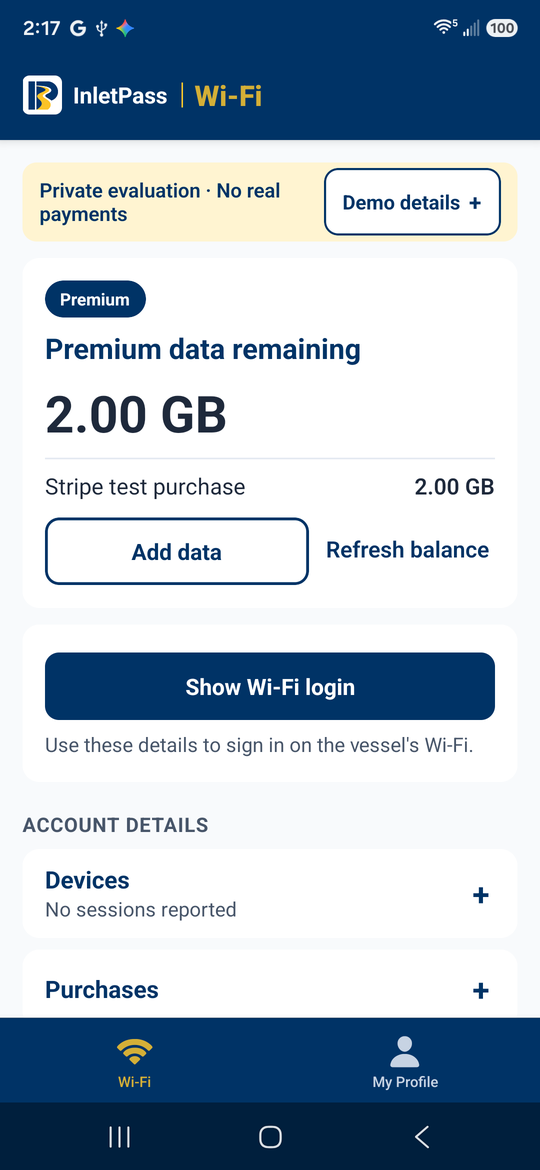
Actual Android evaluation showing a premium data balance
By invitation

Passenger Android app

Put the Wi-Fi account in the passenger’s pocket.

Try this: Create a Wi-Fi account, check the balance and try a test purchase.

Look for: The private evaluation uses real email verification and Stripe test mode.

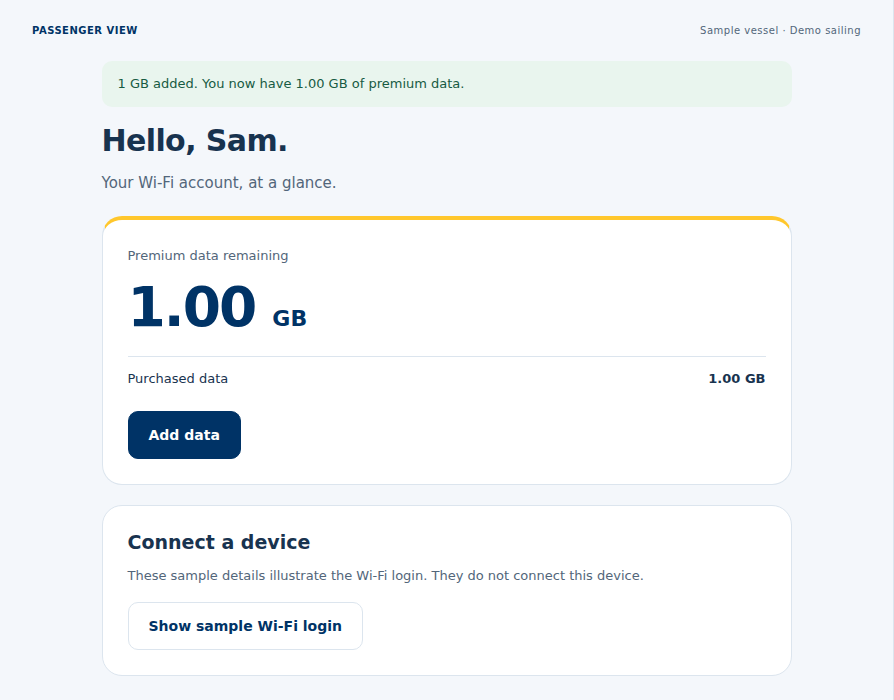
Actual browser demo sample passenger balance
Demo open now

Vessel Wi-Fi

Give passengers and crew control over their allowance.

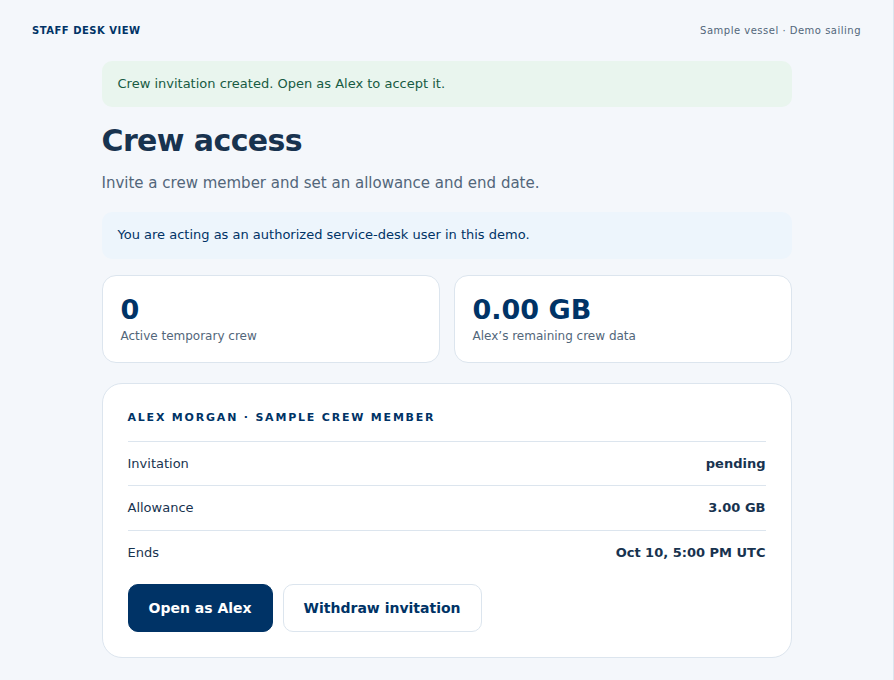
Try this: Create a sample account, use premium data, then invite temporary crew from the staff desk.

Look for: Purchased and crew allowances are shown separately. Free access remains when premium runs out.

Public simulation of the crew invitation workflow also available in the private evaluation
By invitation

Hosted Wi-Fi evaluation

Try the account service behind the screens.

Try this: Use an invitation to open the Azure-hosted evaluation.

Look for: An isolated evaluation workspace, real email codes and test-mode checkout.

Talk through your next project.

Michael Grediagin · Owner, Inlet Solutions LLC